
Edit Group Class Properties
Many of the high-level properties of a Group Class are accessible from the header area of the Group Class Details screen.
To view and edit the high-level properties of a Group Class:
-
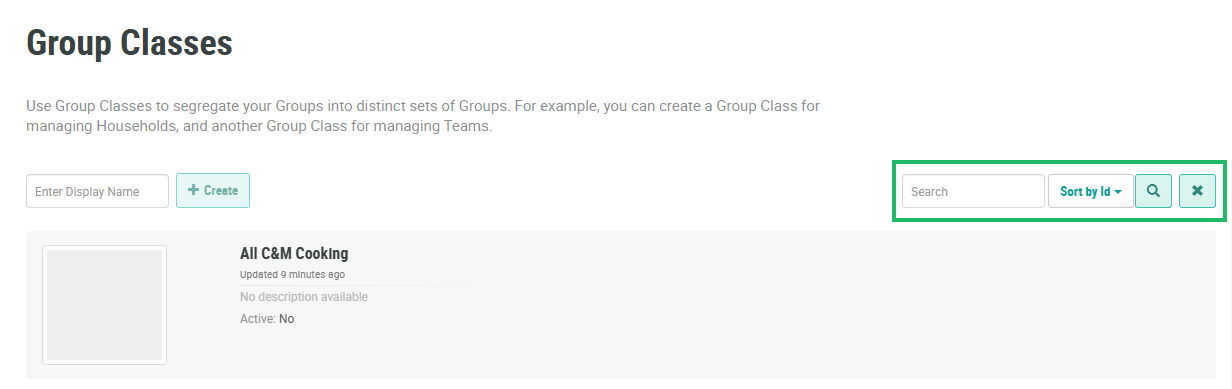
Select Members from the top navigation bar, then select Groups > Group Classes from the side navigation menu. The Group Classes screen is displayed.
-
The search feature on the Group Classes screen allows you to search for a specified text string anywhere within the Display Name and Internal Name. Optionally, in the Search field, enter the desired text string. Click the Search icon. The screen is refreshed to show only the Group Classes that meet your search criteria.
-
To sort the search results, select the desired sort order from the Sort By drop-down menu. The default sort order is by: Group Class ID.
-
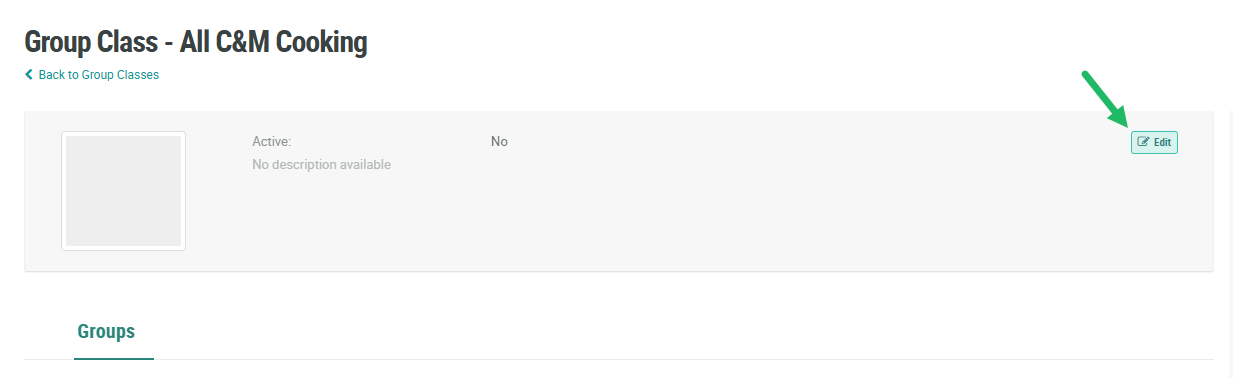
Select the desired Group Class. The Group Class Details screen is displayed with the Groups tab selected.
-
Within the header area, click Edit. The Edit Group Class pop-up window is displayed.
-
Optionally, make the desired changes to the Group Class properties. For information on the available properties, see Create a Group Class.
-
Click Save.
